

Installing Python
Python is the primary scripting and development language used across many RMC projects for data analysis, automation, scientific computing, and tool development. This section covers how to install Python on your machine and ensure it is properly configured.
Choosing a Python Version
Python releases follow a major.minor.micro versioning scheme (e.g., Python 3.13.2). When selecting a version:
- Use Python 3.10 or later for RMC development work. Older versions are missing important language features and library support.
- Avoid the very latest release. Some scientific packages take time to release compatible builds for brand-new Python versions. Choosing a version that has been out for at least several months gives the package ecosystem time to catch up.
- Match your team's version if you are joining an existing project. Check the project's documentation or
requirements.txtfor version guidance.
Python Release History
Each Python version follows a roughly 5-year support lifecycle: approximately 2 years of active bug-fix support (with binary installers), followed by approximately 3 years of security-only patches (source-only releases), then end-of-life.
| Version | Initial Release | Status | End-of-Life |
|---|---|---|---|
| Python 3.9 | October 2020 | End-of-life | October 2025 |
| Python 3.10 | October 2021 | Security fixes only | October 2026 |
| Python 3.11 | October 2022 | Security fixes only | October 2027 |
| Python 3.12 | October 2023 | Security fixes only | October 2028 |
| Python 3.13 | October 2024 | Active (bug fix) | October 2029 |
| Python 3.14 | October 2025 | Active (bug fix) | October 2030 |
For the most current release information, see the official Python Release Schedule.
Python 2 reached end-of-life in January 2020 and should never be used for new development. All instructions in this guide are for Python 3.
Installing Python
- USACE Computers
- Non-USACE Computers
Python is available for request through the USACE App Portal.
To install Python:
- Open the USACE App Portal
- Search for Python and request the available version
- Installation should occur automatically. If installation doesn't begin within 48 hours, contact the Enterprise Service Desk at (866) 562-2348.
App Portal Version
The Python versions available through the App Portal may vary and do not always include every release. Before installing, verify with your team lead that the available version is appropriate for the work you will be performing.
Option 1: Standard Installer (Recommended)
- Visit the official Python Downloads page
- Download the installer for your desired version (see Choosing a Python Version above)
- Run the installer
- Important: On the first screen of the installer, check the box that says "Add python.exe to PATH" before clicking Install. This saves you from manually configuring PATH later.
- Select "Install Now" for a user-level installation (no admin rights required) or "Customize installation" if you need to change the install location
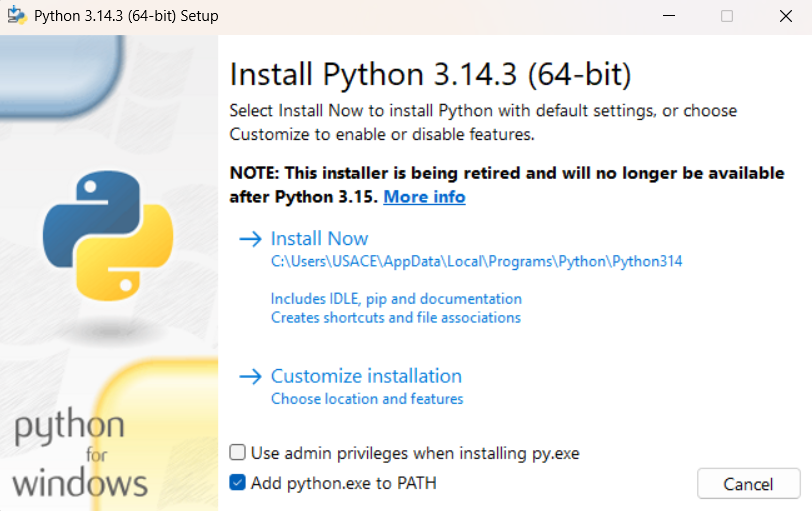
The default user-level install location is: C:\Users\<username>\AppData\Local\Programs\Python\Python3XX\
Option 2: Portable (Embeddable) Package
If you cannot run installers on your machine, Python offers an embeddable zip package that requires no installation:
- Visit the Python Downloads page and select your desired version
- Scroll down to Files and download the Windows embeddable package (64-bit) zip file
- Extract the zip to a permanent location, such as:
C:\Users\<username>\AppData\Local\Programs\Python\Python3XX\ - You will need to manually add this location to your PATH (see below)
Embeddable Package Limitations
The embeddable package does not include pip by default. After extracting, you will need to install pip manually by downloading get-pip.py and running python get-pip.py. You may also need to edit the python3XX._pth file in the extracted folder and uncomment the import site line for pip to work correctly.
Adding Python to PATH
If Python is not automatically added to your PATH during installation (or if python --version fails after installation), you will need to add it manually.
PATH is an environment variable that tells your operating system where to find executable programs. Without Python on your PATH, you would need to type the full file path to python.exe every time you run a command.
To add Python to your user PATH:
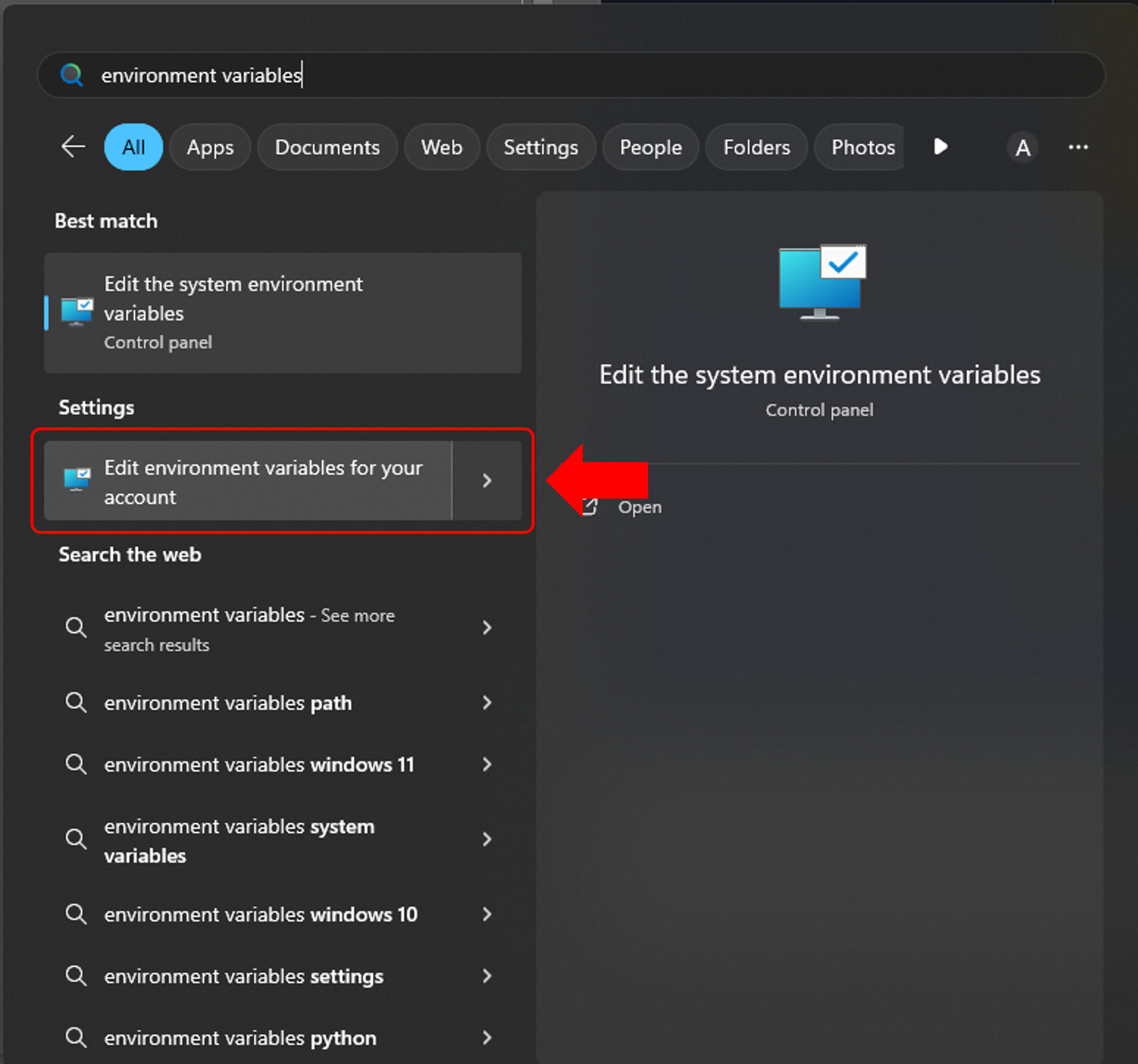
- Open the Windows Start Menu and type environment variables into the Search Bar
- Click on Edit environment variables for your account
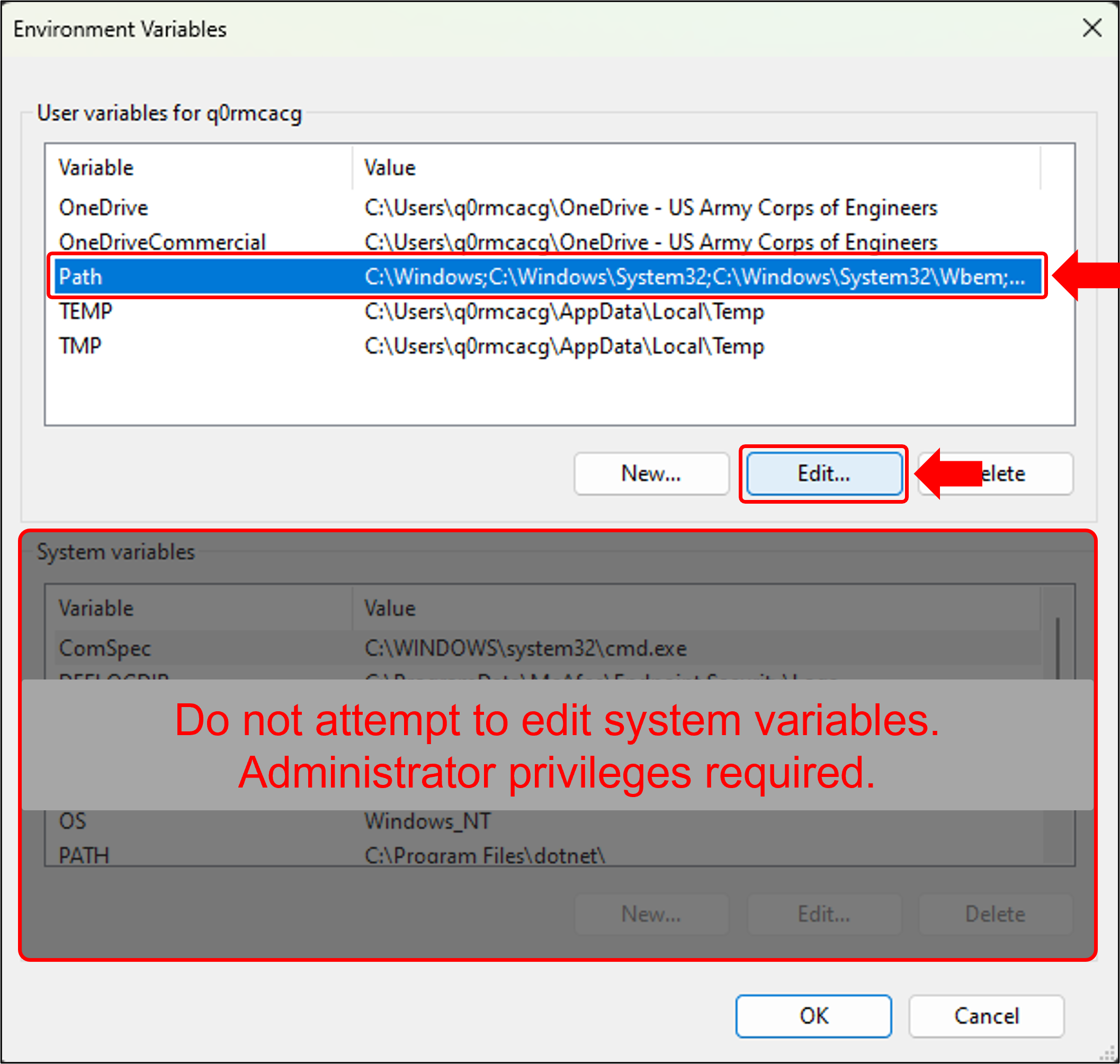
DO NOT click Edit the system environment variables. System environment variables apply to all users on the machine and require administrator privileges to modify. On USACE computers, you will not have access to this option. Even on machines where you do have administrator rights, modifying user variables is preferred — it keeps your changes scoped to your account and avoids unintended side effects for other users.
- In the Environment Variables window, select Path under User variables and click Edit...
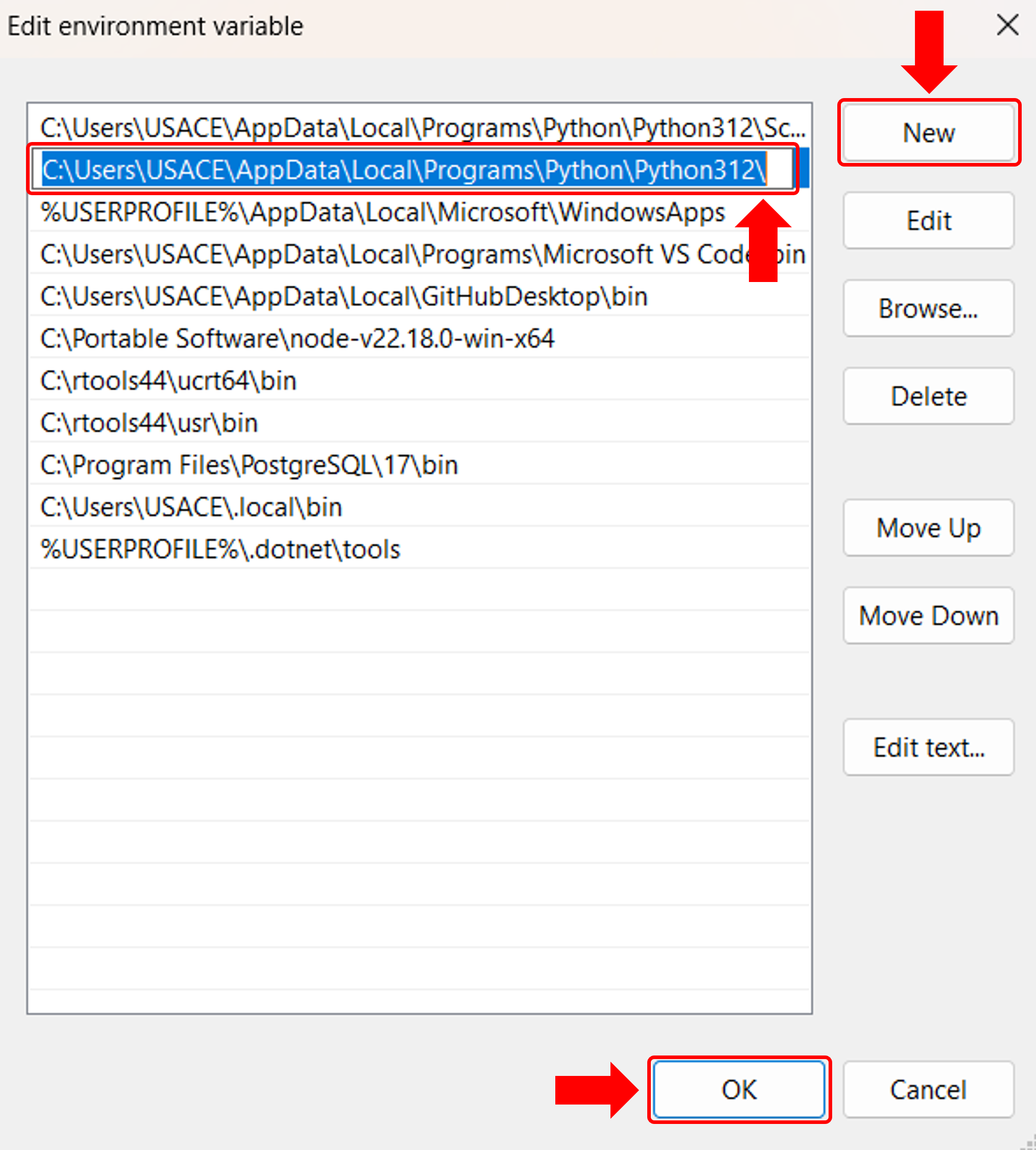
- Click New and add the path to your Python installation folder (the folder containing
python.exe). For example:C:\Users\<username>\AppData\Local\Programs\Python\Python312\ - Click New again and add the
Scriptssubfolder (this is wherepipand other tools are installed):C:\Users\<username>\AppData\Local\Programs\Python\Python312\Scripts\ - Click OK to close all environment variable windows
Restart any open terminal windows after modifying PATH. Changes to environment variables do not take effect in terminals that were already open.
python vs. python3 vs. py
On Windows, you may encounter three different commands for running Python. Understanding the differences avoids confusion:
| Command | Description |
|---|---|
python | The most common command. Works if python.exe is on your PATH. On most Windows installations, this is the command you will use. |
python3 | Common on macOS and Linux, where python may still point to Python 2. On Windows, this command may or may not work depending on your installation method. |
py | The Python Launcher for Windows. Automatically finds installed Python versions and runs the latest one. Installed by the standard python.org installer but may not be available through the App Portal or portable installations. |
Recommendation: Use python for consistency throughout this guide and across RMC projects. If python doesn't work but py does, you can use py as a substitute in all commands.
Verifying Your Installation
Open a new terminal window (Command Prompt, PowerShell, or the VS Code integrated terminal) and run:
python --version
You should see output like:
Python 3.12.4
Then verify that pip (Python's package manager) is available:
pip --version
You should see output like:
pip 24.0 from C:\Users\<username>\AppData\Local\Programs\Python\Python312\Lib\site-packages\pip (python 3.12)
If either command fails, see Troubleshooting for solutions.
If pip is not recognized but python is, you can always use python -m pip as an alternative. This runs pip through the Python interpreter directly and bypasses PATH issues with the Scripts folder.