

Installing Git and GitHub Desktop
Git is a version control system that tracks changes to your files over time, allowing you to maintain a history of your work, collaborate with others, and revert changes when needed. GitHub Desktop provides a graphical interface for Git, making common operations more accessible without using the command line.
Both tools are essential for RMC development — even if you are working on a solo project, version control protects your work and provides a record of changes.
Installing Git and GitHub Desktop
- USACE Computers
- Non-USACE Computers
Git and GitHub Desktop are both available through the USACE App Portal.
To install:
- Open the USACE App Portal
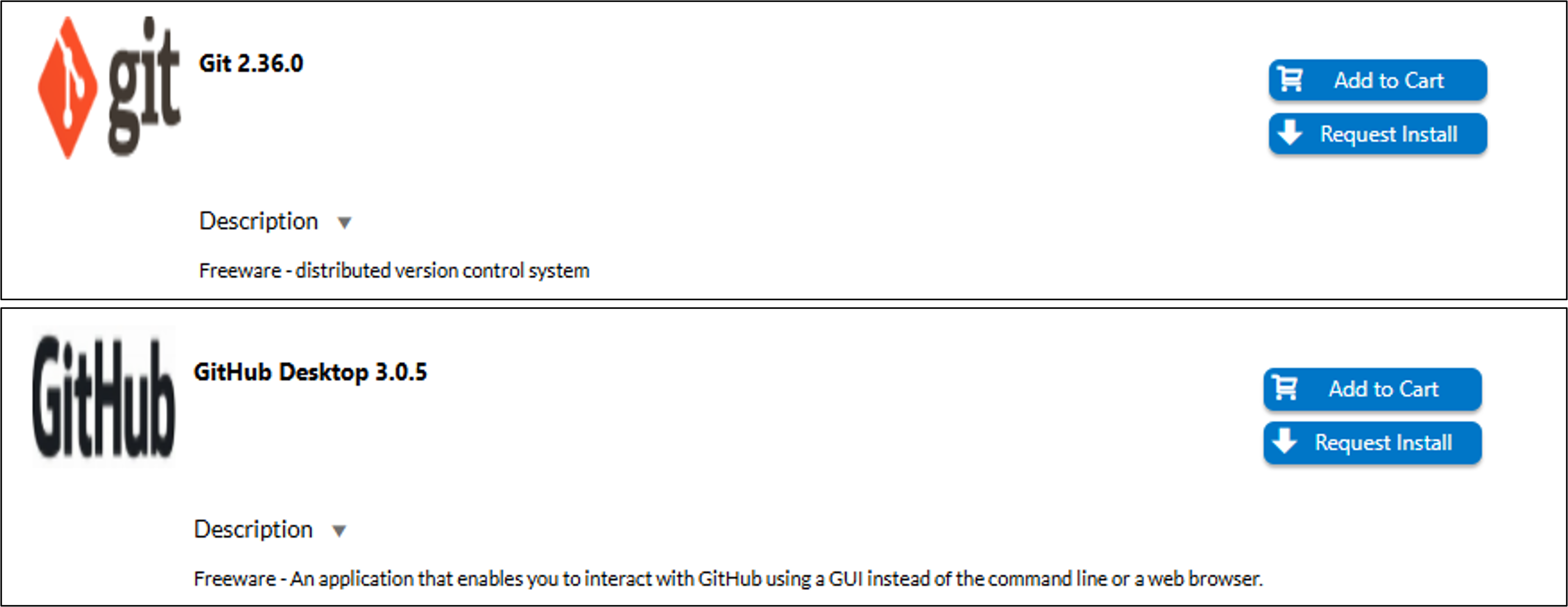
- Search for and request the following applications:
GitGitHub Desktop
- Installation should occur automatically. If installation doesn't begin within 48 hours, contact the Enterprise Service Desk at (866) 562-2348.
Git
- Download Git from git-scm.com
- Run the installer with default settings. The installer will add Git to your PATH automatically.
Portable option: If you cannot run installers, download Portable Git (the "Portable" or "thumbdrive" edition), extract it to a permanent folder, and add the folder to your user PATH (same process as described in Installing Python).
GitHub Desktop
- Download GitHub Desktop from desktop.github.com
- Run the installer and sign in with your GitHub account
Verifying Installation
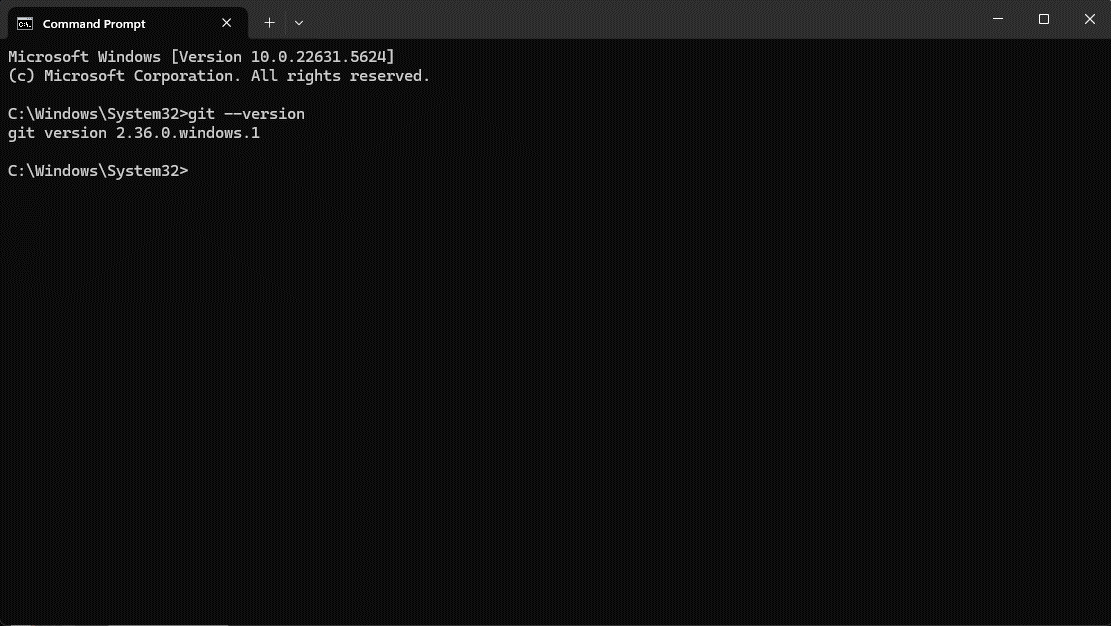
Open a new terminal window and run:
git --version
You should see output like:
git version 2.42.0.windows.2
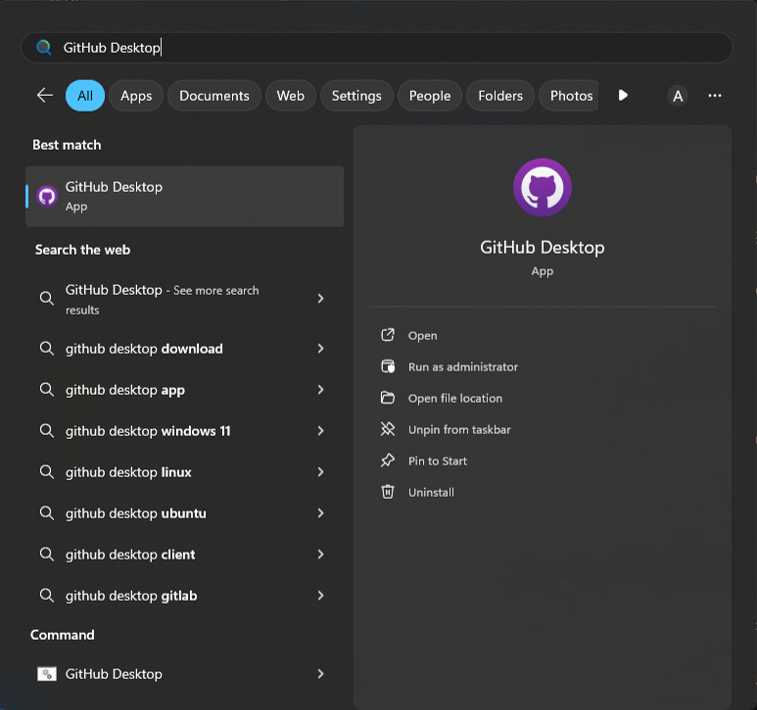
To confirm GitHub Desktop is installed, open the Windows Start Menu and search for GitHub Desktop. The application should appear in the list.
Initial Git Configuration
After installing Git, configure your name and email. These are attached to every commit you make and identify you as the author of changes.
Open a terminal and run:
git config --global user.name "Your Name"
git config --global user.email "your.email@usace.army.mil"
Replace the values with your actual name and USACE email address (or personal email for non-USACE machines).
You can verify your configuration at any time with:
git config --global --list
GitHub Account
To collaborate on RMC projects hosted on GitHub, you will need a GitHub account.
If you don't already have one:
- Visit github.com and click Sign up
- Follow the prompts to create your account
- Complete email verification
- Consider enabling two-factor authentication (2FA) for security
Next Steps
For comprehensive guidance on branching strategies, pull requests, code reviews, and team workflows, see the GitHub Workflows SOP.
GitHub Desktop can be used for most day-to-day Git operations (clone, commit, push, pull, branch) without touching the command line.